Connect With Us

Showing posts with label Mobile Infos. Show all posts

HOW TO TWEET ON TWITTER USING 2GO


As I always say, 2go is one of the leading mobile Application for mobile user's in the world today, Due to this many people use it as the best social and communicating application among themselves.


Well, lets put talks aside, Today i will be giving you a Tip and Trick tutorial on how to connect you Twitter to 2go for easy communication among mates and family.

Now, is just been made easy to connect your Twitter Account with your 2go using this simple process.

HOW TO CONNECT YOUR TWITTER ACCOUNT TO YOUR 2GO ACCOUNT

1. Visit www.twitter.com and sign in to your twitter account. Now, when you are Logged in, Go to www.tweet.im/ and click on the Sign in with twitter button.

2. Then, when it signed in, Click on Authorise App. Now here is what you do select your desire account to use it, well its recommend to use Gmail because 2go only authorise Gtalk, Kindly select Gmail and fill in your Gmail email address

3. Then Click On Register button, Now Open your 2go and go to Settings, click on Gateway and select Gtalk then activate using you gmail logins all in lower case.

4. Now go to your friend lists and you will see a request from Twitter, click and accept request and add Twiiter as a friend. That's All.

Now you have successfuly added Twitter gateway to you 2go. The tweet IM service sits between your Jabber or Google@Talk instant messaging account and your Twitter account and passes messages to and from, Logins with Gmail Gateway with 2go are in lower case.

GET THE ENERGIZER AP650 MICRO-USB BACKUP BATTERY & CHARGE YOUR PHONE ON THE GO


I feel very much Relieved typing this Post on my Blackberry Phone without the fear of Running out of battery,


Today we shall be discussing about the "Energizer AP650 Micro-USB Backup Battery ".


Energizer AP650 Micro-USB Backup Battery is a device that allow charge your Mobile Phone e.g Blackberry, Samsung, Nokia and other Device that makes use of the Micro-USB Port on the Go.


No need to Panic again even if you're in a Bus Travelling.


You can now Ping, Browse, Chat with Friends on your Device and once the Battery is down, You attach your Energizer and you can continue using your device again, Its very portable and handy to take around.


Highlights


• Compatible with Blackberry or any smart phone with Micro USB port.


• Super Slim Profile; Take it anywhere - attaches to keyring. • Easy Charging; Just plug in original phone adapter.


• Dual Purpose; Lets you charge and talk at the same time.


• Rechargeable up to 500 times.


• Up to 90 minutes extra talk time. The AP650 portable charger is ideal Micro-USB backup battery for your BlackBerry or smart phone.


The compact size and slim shape make it convenient to carry on your key ring and take it anywhere and use it anytime!.


Need the Portable Charger? The Official price goes for ₦4,800

YAHOO! EMAIL LOGIN PROBLEM ON OPERA RESOLVED

People keep complaining in Silent, Harotechltd was created to solve Issues.. A User contacted us tonight that for some times now he has been Unable to check his Mail on his Phone via Opera Mini, I actually tried it out on my Blackberry via Opera and this was the Response "We’re sorry that you are having difficulty logging in. Please sign in from our desktop login screen and then try login again from our mobile login screen" Just like this in the Image below, I believe you should have experience this also.


Well, Don't let us talk much instead Resolve this Problem.. Follow the Step below to Quicky Fix the Yahoo! Issues and contine checking email on your Phone without any Issues,

1. Visit http://login.yahoo.com/config/login

2. You should be presented with the full/PC version login page.

3. Input your username and password, hit the login button and fill the captcha.

4. You should now be logged in now. You may be shown the account information page but you can choose to go to the homepage and then access your mail box from there. Simple

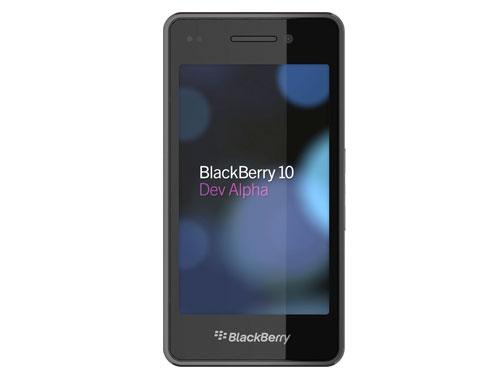
BlackBerry 10 Dev Alpha Released


BlackBerry 10 Dev Alpha


The BlackBerry 10 Dev Alpha is actually a prelude to the much anticipated release of the operating system later this year. It has already been planned by RIM since last year and everybody would agree that the BlackBerry World Conference is one way to build up the hype for the company’s next big thing. It is also during the release of the development versions that developers would be attracted to the new OS but it seems like it’s not really making an appeal. Developers are essential to the success of any operating system because they are the ones that will make it alive with apps. But RIM seems to be running after for nothing. The lack of apps in BlackBerry marketplace is actually one of the reasons why the company’s shares dropped about 70 percent last year. But let’s put aside the financial status of RIM, let’s focus more on the features of BlackBerry 10 OS.

BlackBerry 10 OS Key Features

Here are some of the features that RIM boasts about its upcoming operating system. BlackBerry 10 is actually a major bump so there are tons of news features and enhancements. However, the features I will mention here are the ones where RIM failed in the previous releases of its operating system. Therefore, it is just right to see if the company is doing its part in addressing and improving the fields where it has failed before.

Gesture-Oriented. RIM’s focused radically shifted developing interfaces driven greatly by gestures. BlackBerry 10 is actually geared to offer users more convenience by executing commands done by gestures. Users can execute commands faster with less effort. If this feature will be perfected before the OS is released later this year, it would become a breakthrough in technology as this has never been tried before.

Physical Keyboard Gone. While we used to think that BlackBerry was gearing up to sell physical keyboards for its devices, BlackBerry 10 is the first to ever eliminate their use. The touch keyboard will now be available for users of BB10 and it’s most likely that a QWERTY touch keyboard would also be made available for users who might prefer it over the typical mobile keyboard.

New Homescreen. During the conference, it has been revealed to the developers that there will be three persistent buttons on the bottom part of the home screen, Phone, Search and Camera. At the top portion, details of radios, alarm clocks, battery life, and time will be shown. The notifications will be made available by gesture. The apps will be represented by tiled icons, tapping on any of them will launch the respective apps. A swipe from the inside of the app will bring the user back to the home screen.

Sliding Screen Layers. True to its word, RIM made BlackBerry 10 an interactive OS. When you are inside an app, a full left to right swipe would let you see the notification screen. The half swipe will bring your directly to a screen where you can read you emails and messages. Basically, it will require less actions on the part of the user as commands are executed easier and faster this time around.

Better Camera App. To make it easier for you to choose the perfect shot, BB 10 OS will record before and after frames so you can swipe back and forth to choose the shot that best fits your taste. BlackBerry has never got a good touch as far as camera is concerned. This time around, it seems that RIM is seriously compensating what the OS lacked in its previous versions.

Apps Playing in the Background. Just like in PlayBook, RIM said that BB 10 will have its apps running in the background, although it eats up very small amount of memory from the device because they are idle. They are kept running so that gestures would be possible to switch between them. This is also the reason why BB 10 will be faster than the previous BlackBerry operating systems. The main issue about this feature when BB 10 OS will be released is the battery. With many apps running in the background, there would always be some negative effects on the battery.

As always, there are people who are not satisfied with what RIM has to offer after a very long wait. But there are also those who believe the company has made the right decision in releasing the 10th version of its popular OS this year. BlackBerry 10 is a feature-packed OS with a lot of new and unique features that mostly everybody hadn’t seen before. But the question is, will it really make an appeal to the public considering there is a cutthroat competition going on between iOS, Android and Windows Phone? Can BlackBerry 10 stand a chance against these titans?

The developer attendees of the BlackBerry World conference were given a development kit together with the prototype device running on BlackBerry 10 OS which they need for app development. Reportedly, RIM said that any developer who gives back the prototype device after the testing period will be given a new device running the latest OS

How To Download Youtube Video With Your Phone

Download Video Directly From

Youtube Using OperaMini First

Step copy the java script script

in box below


Now Follow my steps in the screen shot.


1.After you have copy the script

above clickthe menu on

operamini and choose

bookmark
2. Now edit any of your book mark and replace the address with the CODE you copied earlier


3. Now goto YOUTUBE and search for any video you wanna download


4. Scroll down to the bottom of the page and click on

 "Desktop" to view the web version


It should look like this in web version


5. When the desktop version shows goto bookmark again and choose the youtube trick you bookmarked earlier, click on it


6. When the page reload/open, zoom in


You will see the " Download"

Category appear {flv, mp4, flv

HD, mp4 HD} Choose the format

you like. And your Operamini wili brIng

path to save the file after

choosing the path then your

download start. ENJ0Y


You can watch MP4 videos with Coreplayer, smartmovie etc for java phones you can convert the MP4 to 3GP online-convert

Mod Opera Mini Browsers Using mobile


APPLICATIONs NEEDED:

  • Class Editor
  • Class translator
  • BlueFTP
  • Raw Operamini 4.2
  • Picture in .png format
  • Phone that support add & edit data..
Firsly open ur operamini.jar with

BlueFTP and extract all it content

into a folder.


Change the www. Of the add bar

open ur class translator locate the

folder where d extracted files are open code.class (4 handler), Z.class (4 LabsHandler) scroll down you will see www. click on it & change

it. eg: .. Infotokra press option save it, press option again choose close it will show 'leave spare file' press option 'No' ok then exit... Thats it...


Changing Operamini Name:

Open your class editor locate the

extracted files open META- INF

inside it. You will see manifest.mf inside it you will see Midlet-name, change it to any name u want.

Note: we dont change d name of operamini4.2labsHandler else you will get error.


Change Operamini Icon

In the extracted files you will see i.png. Delete it theen copy d picture that you want 2 use with blueFTP and paste it in the folder where the

extracted files are, theen rename that picture to i.png


Changin Connecting, installing, processing, loading, connecting

Open your class editor locate V in the extracted files, open it press 9 in the text box enter Connecting then

press 2 once to see it. Use key 4 to

scroll to the first letter of the word C

press *. You will see red bar behind dat C, use key 6 to highlight the word and stop at the last letter of the word G press 5, 3 times choose text and enter the new word you want to use in replace (the word must not exceed 10 characters if the new word is not up to 10 you can add space to make it 10 character). Press upper left key and save it.

Use the above procedure to edit

INSTALLING, PROCESSING, LOADING too. There are two loading in V so edit the both.

Note: Installing, Connecting &

Processing are 10 letters. Loading is 7 letters.


Change Welcome Page

(the page that it will show when installing your opera before accept)

Open ur class editor locate the

extracted files. Open v, scroll down with key 8. You will see http://www.operamini.com/firsttime/4.2/ scroll to that first w. Then press 6 to highlight the link and stop at the (/) after 4.2 eg: | www.operamini.com/

firsttime/4.2/ | press 5, 3 times

choose text then enter the new link

that you want to use (that link is 32

characters and the new link must also be 32 characters but if the link is not up to 32 characters add spaces at the back of the link 2 make it 32) eg: www.example.com/ if the url is not up to 32 complete it with space then Press upper left key and save it.


Packing of Opera

Now to pack your opera, open your blueFTP locate the folder where the

extracted files are. Open it then press menu select all it will highlight all press menu again 'choose compress to zip' give it anyname.zip eg: mini.zip ok continue pressing yes until you see finally compress, now rename your opera from .zip to _jar eg: mini.zip to mini_ jar. Then exit blueFTP. Goto ur gallery loate the opera then rename it 4rm _jar to .jar eg: mini_jar to mini.jar


Blogger news

Best Blogger Tips
Welcome - If Your New Here You Wont Want To Miss Another Article.
Why Not Subscribe To Our Rss Feed !

Blogroll

Latest Posts

Blog Archive

Translate

Powered by Blogger.